Audio Recorder Settings
- for Audio Recorder Pro and Audio Recorder Platinum
1. Record Quality Setting
2. Auto. Record Setting
3. Silence Detection Setting
4. Preview, Microphone Setting (Platinum version only)
5. Advanced Record Setting (Platinum version only)
6. MP3 Codec Setting
7. Hot Key Setting
8. Miscellaneous Settings
1. Record Quality Setting
Audio Recorder (Pro and Platinum versions) provides a quick and easy way for you to set and manage recording parameters with recording quality. Just click 'Output Quality' button to launch 'Output Quality Management' window.
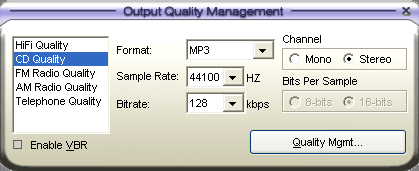 You can add ('Save As'), update ('Save') and remove ('Remove') recording quality. In addition, you can reset ('Reset') all recording qualities to the default. You can add ('Save As'), update ('Save') and remove ('Remove') recording quality. In addition, you can reset ('Reset') all recording qualities to the default.
Note:
'Enable VBR' is only valid for MP3 format, which means to recording MP3 in VBR (Variable Bitrate) mode.
|
Back to Top
2. Auto. Record Setting
Audio Recorder (Pro and Platinum versions) provides powerful timer for you to easily schedule the recording for both start and stop recording automatically. Simply click the 'Auto Record' button, you are able to set following parameter for auto record:
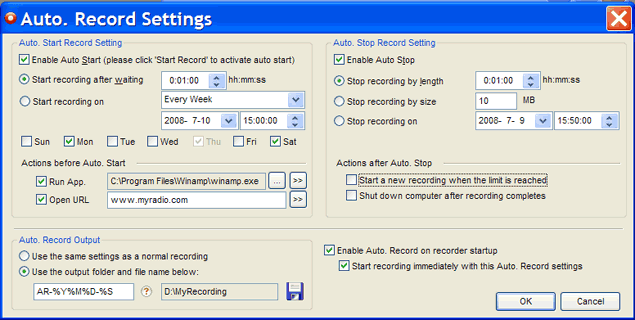
Auto Start* - Start recording automatically
1. Start Recording after waiting for a period of time (in hour:minute:second format)
2. Start Recording on exactly date/time. You can choose one of three mode: Specified day, Every day and Every week.**
For 'Every Week', you are able to select more than one week day (Platinum version only).
3. Actions before Auto. Start (Platinum version only)
You can set following tasks before the recording is started:
- Run App.: run an application, for example, the audio program you want to record with.
- Open URL: open an URL by your default internet browser, for example, the URL of the internet stream you want to record with.
Auto Stop - Stop recording automatically
1. Stop Recording by Length: automatically stop recording if the recorded length exceeds a period of time (in hour:minute:second format)
2. Stop Recording by Size: automatically stop recording if the recorded size exceeds the specified size (in MB)
3. Stop Recording on exactly date/time.**
4. Actions after Auto. Stop
You can set following tasks after the recording is stopped:
- Start a new recording when the limited is reached
- Shut down the computer (Platinum version only)
Auto Record Output
Set the output folder and file name of Auto Record. You can either use the same settings of a normal recording, or define the additional output folder and name.
More Auto Record Options
By default, Auto. Record feature (both Auto. Start and Auto. Stop) is disabled when the recorder is just launched. You can enable Auto. Record on recorder startup by the option 'Enable Auto. Record on recorder startup'. If you'd like to start Auto. Record immediately without manually click 'Start Record' on recorder startup as well, please check the option 'Start recording immediately with this Auto. Record settings'.
If you'd like to set up more than one 'Auto. Record' scheduler, please click here.
Note:
*: 'Auto Record' will NOT be activated until you click 'Start Record' to start a recording session.
**: If you choose either 'Every day' or 'Every week' mode, the date/time you set is the first time which recording starts or stops, and it will be adjust automatically to the next time for all following repeatable recording sessions. |
Back to Top
3. Silence Detection Setting
With 'Silence detection' during recording, you are able to start the recording by level of loudness and pause or even stop the recording for silence. This option is especially useful when recording streaming audio and net congestion temporarily stops the stream. Audio Recorder (Pro and Platinum versions) will just pause and wait for the signal to reappear instead of having a big blank spot in your recording.
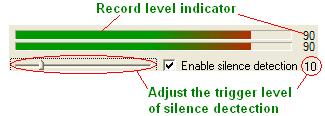
Silence Detection Threshold
The trigger level against the record indicator level:
- Start Recording if record indicator level is over the trigger level, or
- Pause or Stop Recording if record indicator level is under the trigger level
|
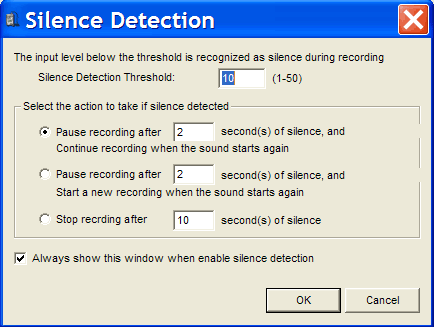 |
Actions if Silence Detected
Select a action from the following if a period of silence is detected:
- Pause recording during silence and resume recording when the sound starts again
- Pause recoding during silence and start a new recording when the sound starts again
- Stop recording |
Back to Top
4. Preview and Microphone Setting (Platinum version only)
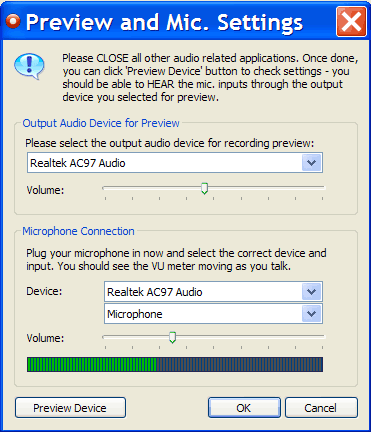 The 'Preview and Mic. Settings' is for Audio Recorder Platinum only. You can set the output audio device for preview and microphone. It is important to close all other audio related applications. The 'Preview and Mic. Settings' is for Audio Recorder Platinum only. You can set the output audio device for preview and microphone. It is important to close all other audio related applications.
Output Audio Device for Preview
You can select the output device to monitor recording (for recording preview). You can monitor the recording from this device when you ticked the option 'Preview' on record panel.
Microphone Connection
Please plug your microphone in and select the correct device for the microphone. If the setting is correct, you should see the VU meter moving as you talk.
Once you enabled the microphone input option in EZ ALL-Record mode, Audio Recorder Platinum will record the input from the device you set here.
It is strongly recommended to check your settings once done. Just click 'Preview Device' button, and you should be able to hear the Microphone inputs through the output device you selected for preview. |
Back to Top
5. Advanced Record Setting (Platinum version only)
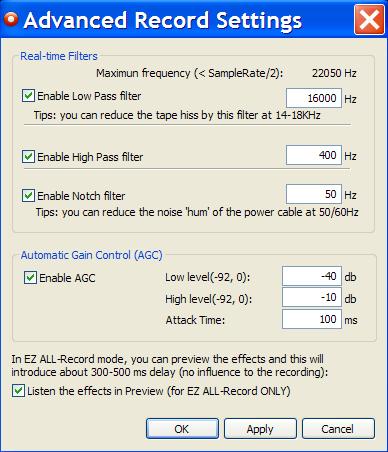 The 'Advanced Record Setting' is for Audio Recorder Platinum only. You can enable and set the parameters for Real-time filters (Low-Pass filter, High-Pass filter, Notch filter) and Automatic Gain Control (AGC). The 'Advanced Record Setting' is for Audio Recorder Platinum only. You can enable and set the parameters for Real-time filters (Low-Pass filter, High-Pass filter, Notch filter) and Automatic Gain Control (AGC).
You are able to preview the effects of the settings immediately if Preview is enabled, and even in the recording.
Real-times Filters
You can use the real-time filters to cut unwanted frequencies from the input signal.
Low Pass filter: it allows only the lower frequencies to be present into the output signal, cuts the frequencies from 0 to the specified frequency and passes the frequencies which is over the specified frequency.
Tips: You can reduce the tape hiss at 14-18KHz. It will cut the beautiful crystal sound of a violin (frequencies over 10 KHz), but if it could amplify rather than just pass the low frequencies, than it would enhance your favorite disco music with lots of percussions and bass.
High Pass filter: it allows only the higher frequencies to be present into the output signal, cuts the frequencies from the specified frequency to the highest and passes the frequencies which is under the specified frequency.
Notch filter: it cuts the specified frequency from the input signal.
Tips: You can reduce the noise 'hum' of the power cable at 50/60Hz.
Automatic Gain Control (AGC)
AGC is helpful to improve recordings.
The volume will be decreased if the level is more then High Level (default value: -40db). And the volume will be increased if the level is less then Low Level (default value: -10db). The rate of the volume changing is equal to (20db / Attack Time (default value: 100ms)).
Listen the effects in Preview (EZ ALL-Record mode ONLY)
In EZ-ALL Record mode, you are still able to preview the effects immediately like normal record mode, however it will introduce about 300-500ms delay (it affects the preview only and no influence to the recording).
If you do not want the delay in Preview, you can un-check the option. |
Back to Top
6. MP3 Codec Setting
L.A.M.E codec is introduced in Audio Recorder (Pro and Platinum versions) for MP3 encoding, all settings for the encoding are listed below and they are only valid when selected MP3 as recording out format:
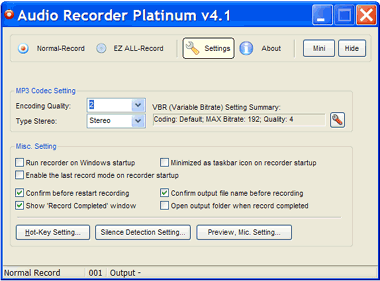 Encoding Quality: Encoding Quality:
The quality of MP3 encoding, varies from 0 (the best quality and the worst speed) to 9 (the worst quality and the best speed).
Type Stereo::
There are four stereo realization for MP3 - Stereo, Joint Stereo, Forced Joint Stereo, Dual Channel
VBR Settings::
Click  to set following VBR parameters: to set following VBR parameters:
- Coding Method: Total 5 VBR coding methods - Default, Old, New, MTRH and ABR
- MAX VBR Bitrate: Maximum Bitrate for VBR coding
- VBR Quality: VBR coding quality, varies from 0 (the best quality and the worst speed) to 9 (the worst quality and the best speed).
- MAX ABR Bitrate: Maximum ABR/VBR bitrate if ABR is selected as coding method. Varies from 10 to 310
- Write VBR Header: Indicating if VBR header is included to the recording output audio file or not
- Minimum Bitrate: Indicating if the minimum Bitrate is enforced or not
|
Back to Top
7. Hot Key Setting
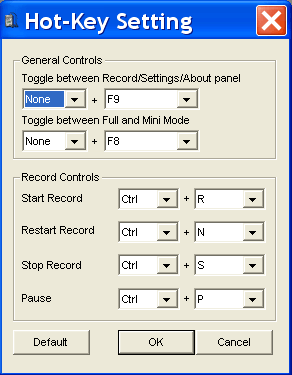 Audio Recorder (Pro and Platinum versions) provides flexible way for you to define your own shortcuts for some often used operations (like start/stop record, etc.). Audio Recorder (Pro and Platinum versions) provides flexible way for you to define your own shortcuts for some often used operations (like start/stop record, etc.).
To define your own shortcuts, just go to 'Setting' panel and click 'Hotkey Settings'.
If you want to reset hot key settings, please click 'Default' button and it will load default settings.
Note:
*: Please do not use 'none + F1', which is kept for on-line help. |
Back to Top
8. Miscellaneous Settings
Run recorder on Windows startup
The recorder will be started automatically on Windows startup.
Minimized as taskbar icon on recorder startup
Minimized the recorder to taskbar icon when it is just started.

Enable the last record mode on recorder startup (Platinum version only)
By default, 'Normal Record' mode will be used when the recorder is started. If you want to use the last used record mode on recorder startup, please check this option.
Confirm before restart recording
By default, you will be asked to confirm before you restart current recording. You can ignore this confirmation by this un-check this option (restart recording directly without confirmation).
Confirm output file name before recording
By default, you are able to confirm or even change the output folder every time before record starts. You can disable this step by this option (start the recording directly without confirmation).
Show 'Record Competed' window
By default, a 'Record Completed' window will be showed to indicate the completion of current recording. You can check this option to skip this window when record completed.
Open output folder when record completed
This option is used to automatically open the destination folder once the current recoding session is completed.
Record Output Folder (on Audio Record panel):
Specify the destination folder for the recording output. |
Back to Top